Time Machine® vs cloud backup: why a drive at home isn’t enough
What Time Machine does well, the disasters it can’t protect you from, the 3-2-1 rule, and how Yester adds an off-site copy with nothing to remember.

Key takeaways
- Time Machine makes hourly backups to a drive at home, and restoring from it is quick. But the drive sits next to the Mac it protects.
- Anything that reaches both takes your backup with the Mac: a burglary, a fire, a flood, or ransomware that gets to a connected drive.
- Apple offers no cloud destination for Time Machine. Yester fills that gap with hourly, whole-Mac backups, kept off-site and encrypted with your own key.
- Yester restores a whole Mac onto a new one, through Migration Assistant or straight from the cloud, and nothing on your Mac can delete its backups.
Prices and features checked on 24 September 2026. Every fact about another product links to its source, and the sources are listed at the end.
Time Machine is a good backup to have. It’s built into every Mac, it runs every hour, and restoring from a drive on your desk is quick. But the copy lives next to the Mac, so whatever takes one can take the other: a burglary, a fire, a flood, or ransomware that reaches a connected drive. Apple doesn’t offer a cloud destination for Time Machine, and that gap is exactly what Yester is built to fill.
We make Yester. Every fact about Time Machine below links to Apple’s own documentation.
How does Time Machine work?
Time Machine is the backup feature built into macOS. Connect a drive, add it in System Settings, and it “automatically makes hourly backups for the past 24 hours, daily backups for the past month and weekly backups for all previous months”, deleting the oldest backups when the drive is full. You can turn on Encrypt Backup when you set it up, and Apple suggests a drive with at least twice the storage capacity of your Mac.
It backs up the files that weren’t part of the macOS installation, such as apps, music, photos and documents, to an external drive, another Mac on your network, or network storage that supports Time Machine over SMB. While the drive is disconnected, it keeps local snapshots on the Mac itself: roughly one an hour, each kept for 24 hours.
What does Time Machine protect you from?
Everyday accidents. Delete a file, save over a good version or install something that breaks, and you can go back an hour, a day or a few months, as long as the drive still holds that backup. If the Mac’s internal storage fails, or you buy a new Mac, Migration Assistant can bring your apps, settings and files back from the drive. Restores run at the speed of a local disk, with no internet connection needed.
What doesn’t Time Machine protect you from?
Anything that happens to the place where your Mac lives:
- Theft. A burglar who takes a MacBook can take the drive beside it just as easily.
- Fire and flood. A drive in the same room is lost with the Mac.
- Ransomware. The UK’s National Cyber Security Centre (NCSC) has seen ransomware encrypt “the connected USB and network storage drives holding data backups”. Its advice for small organisations is that a backup drive shouldn’t stay connected when it isn’t in use.
- Forgetting. A laptop only backs up to its drive while the drive is connected. Time Machine picks up again when you reconnect it, and local snapshots cover the gap for 24 hours, but they live on the same internal storage as your files.
- A drive that fails quietly. Backup drives wear out like any other, and a backup you’ve never restored from is a hope, not a plan.
Notice the catch in the middle of that list. Unplug the drive to keep it safe from ransomware, and it stops backing up. A drive at home can’t be both always up to date and always out of reach.
What is the 3-2-1 rule, and does Time Machine meet it?
The 3-2-1 rule is a simple test for any backup plan. In the NCSC’s words, it means “at least 3 copies, on 2 devices, and 1 offsite”. Your Mac and a Time Machine drive give you two copies on two devices, both in one place. That covers a failed drive or a deleted file, but not a burglary or a fire. To meet the rule, you need a copy somewhere else.
What are your options for an off-site copy?
There are two practical ways to keep a copy away from home: a second drive that you carry somewhere else, or a cloud backup such as Yester.
| Off-site option | What it costs | What you have to do | How current it is |
|---|---|---|---|
| A second Time Machine drive kept elsewhere | The price of a drive | Swap the drives regularly | As of your last swap |
| Yester | From £11.99 a month | Nothing after setup | As of the last hour, with 90 days to 5 years of history |
Apple supports backing up to more than one disk: Time Machine “rotates the backup schedule among the disks”, so a drive kept at work or with family catches up each time you bring it back. It works, but only as well as your habit of swapping, and it adds a drive to carry back and forth.
What should a cloud backup do?
Not every cloud service is built like a backup. Before you choose one, check four things:
- It runs by itself, every hour or so, with nothing to remember.
- It keeps history, so a mistake you notice next week can still be undone.
- It restores your whole Mac, apps and settings included, not just your files.
- Nothing on your Mac can delete it. The NCSC’s principles for ransomware-resistant cloud backups say backups should be “resilient to destructive actions”, so a compromised device can’t wipe them.
Yester was designed around all four.
How does Yester work like Time Machine, in the cloud?
We describe Yester as Time Machine in the cloud. It’s an independent app, not an Apple feature, but it works the way Time Machine users expect, with the copy kept somewhere else:
- The whole Mac, every hour. Yester backs up from a snapshot every hour: home folders, apps, mail, messages, photos, app data and settings.
- Your AI coding conversations. The hidden folders where Claude Code and Codex keep them are backed up too, and Yester keeps them after Claude Code deletes its own copies at 30 days.
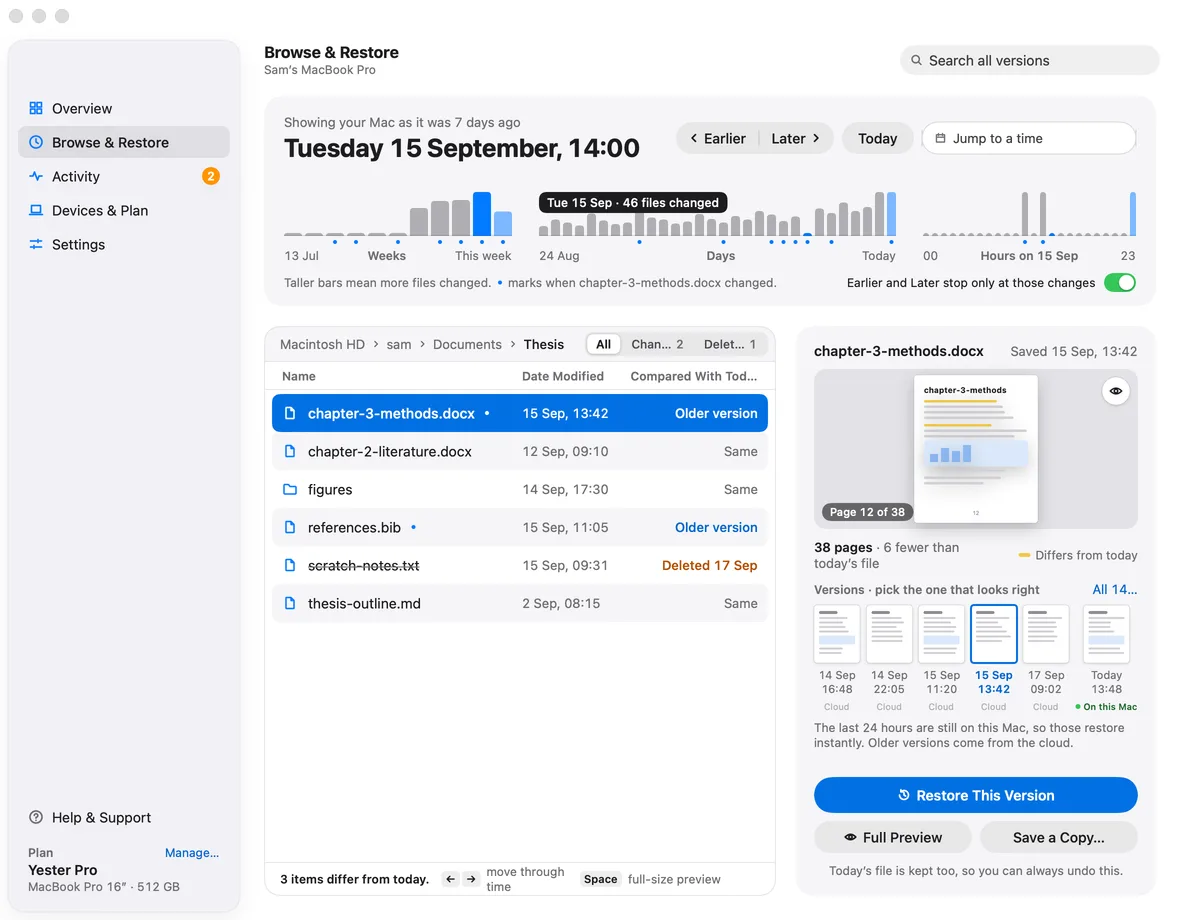
- Recent versions stay on the Mac. Versions from the last 24 hours restore instantly; older ones come from the cloud.
- Versions you pick by sight. Browse & Restore shows your Mac as it was at any moment, with a preview of each version and what changed highlighted.
- Changes you can undo. Restore This Version puts an older version back and keeps today’s file too, so you can take the restore back; Save a Copy leaves today’s file alone.
- History for 90 days, a year or five years, thinned from hourly to daily to weekly as it ages, much as Time Machine’s is.
- Fast restores. Restores run at the full speed of your connection; in our tests a gigabyte came back in about a minute and a half.
- A whole Mac back. On a new Mac, Yester restores everything through Migration Assistant from an external drive, or straight from the cloud, with the Mac ready to use after about ten minutes.
- A key only you hold. Everything is encrypted on your Mac before it’s uploaded, including file names and previews, so nobody at Yester can read your files.
- A backup your Mac can’t delete, so ransomware can’t reach the versions from before it struck.
Yester is priced per Mac by its built-in storage, from £11.99 a month for 512 GB with 90 days of history, and runs on Macs with Apple silicon and macOS 26 or later.
Should you keep Time Machine if you use Yester?
If you have a spare drive, yes. Yester covers the disasters Time Machine can’t, and it keeps the last day of versions on your Mac for quick restores. A Time Machine drive adds a third copy at home, which completes the 3-2-1 rule, and it restores hundreds of gigabytes at the speed of a local disk rather than your internet connection. Both run by themselves once they’re set up.
If you only have one backup, make it the off-site one. A drive at home protects you from yesterday’s mistakes. An off-site backup with history protects you from those mistakes and from anything that takes the Mac and the drive together.
We compare Yester with Backblaze, Arq and the rest in the best Mac backup software in 2026.
How do you set up both in an afternoon?
- Install Yester and let the first backup run. Leave the Mac plugged in overnight; the first backup is always the longest.
- Save your recovery key in a password manager, or let Yester keep a copy in your iCloud Keychain.
- Connect a drive and turn on Time Machine. Choose Apple menu > System Settings > General > Time Machine, click Add Backup Disk, and turn on Encrypt Backup.
- Test both. Restore one file from the Time Machine drive and one from Yester. The NCSC’s advice is to make sure you know how to restore, and that the backup contains all your important data.
- Decide where the drive lives. If ransomware worries you more than forgetting, unplug the drive between backups and let Yester cover the gaps.
Frequently asked questions
Is Time Machine enough on its own?
For everyday mistakes it often is. On its own, though, it doesn’t meet the 3-2-1 rule, because the drive and the Mac are in the same place: theft, fire, flood or ransomware that reaches a connected drive can take both. Add an off-site backup such as Yester.
Can Time Machine back up to iCloud?
No. Apple lists external drives, another Mac on your network, network storage that supports Time Machine over SMB and AirPort Time Capsule as Time Machine destinations. iCloud isn’t one of them, and iCloud Drive syncs files rather than keeping a history of your Mac. Yester was built for that job: hourly backups of the whole Mac, kept off-site.
What is the 3-2-1 backup rule?
Keep at least three copies of your data, on two different devices, with one copy off-site. That’s how the UK’s National Cyber Security Centre puts it. Your Mac, a Time Machine drive and Yester meet it with nothing to remember.
Does Yester replace Time Machine?
It does the same core job, hourly versions and whole-Mac restores, with the copy kept off-site. If you have a spare drive, keep Time Machine as well: it gives you a third copy at home and restores very large amounts of data at the speed of a local disk.
How quickly can I get files back from Yester?
Versions from the last 24 hours are still on your Mac, so they come back instantly. Older versions download at the full speed of your connection: in our tests, a gigabyte took about a minute and a half. A new Mac restored straight from the cloud is ready to use after about ten minutes while the rest arrives.
Sources
Prices and features checked on 24 September 2026. Prices are shown in the currency each company publishes; nothing has been converted.
- Back up your Mac with Time Machine — Apple Support
- Back up your files with Time Machine on Mac — Apple Support
- Backup disks you can use with Time Machine — Apple Support
- About Time Machine local snapshots — Apple Support
- Restore your Mac from a backup — Apple Support
- Use Time Machine on your Mac to back up to multiple disks — Apple Support
- Data usage: transcripts kept locally for 30 days by default — Anthropic (Claude Code docs)
- Offline backups in an online world — National Cyber Security Centre
- Backing up your data (Small Business Guide) — National Cyber Security Centre
- Principles for ransomware-resistant cloud backups — National Cyber Security Centre
- Yester pricing — Yester
- How backups work — Yester docs
- Restoring a file or version — Yester docs
- Restoring a whole Mac — Yester docs
- Security and the recovery key — Yester docs
Apple, Mac, MacBook, iMac, macOS, Time Machine, Migration Assistant, iCloud, iPhone and iPad are trademarks of Apple Inc., registered in the U.S. and other countries and regions. App Store is a service mark of Apple Inc. Yester is an independent product and is not affiliated with, sponsored by or endorsed by Apple Inc.


